
Help · 05
Learning and records
Work through a course, repeat exercises and at the end create and pass on a participation confirmation as a PDF.
Start a course
In the Learn area, open a course under Courses. The course page shows the learning objective, the duration, the language, who is responsible and which version you have. How to complete this course tells you what is needed to finish it, for example working through all lessons and confirming your participation.
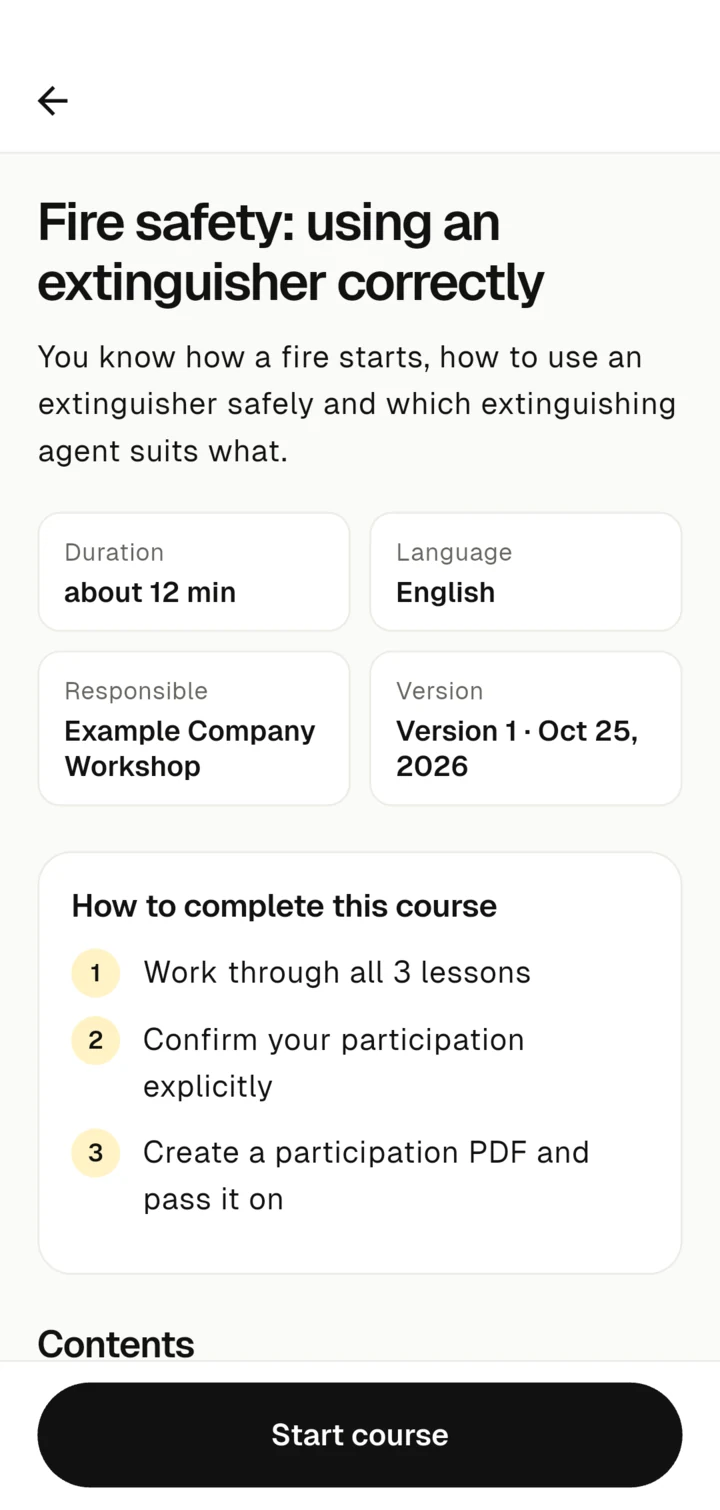
Tap Start course. Later the button says Continue, and after completion Review again.
Working through the lessons
At the top you see where you are, for example "Lesson 2 of 3". Next and Back switch between lessons, and Close lesson takes you back to the course page.
- Larger text makes the text bigger.
- For videos you can turn on Captions, change the speed and open the Transcript. The transcript contains the same information as the video if you are learning without sound.
- Audio files also have a transcript.
- For a PDF, tap Open with … or Save file.
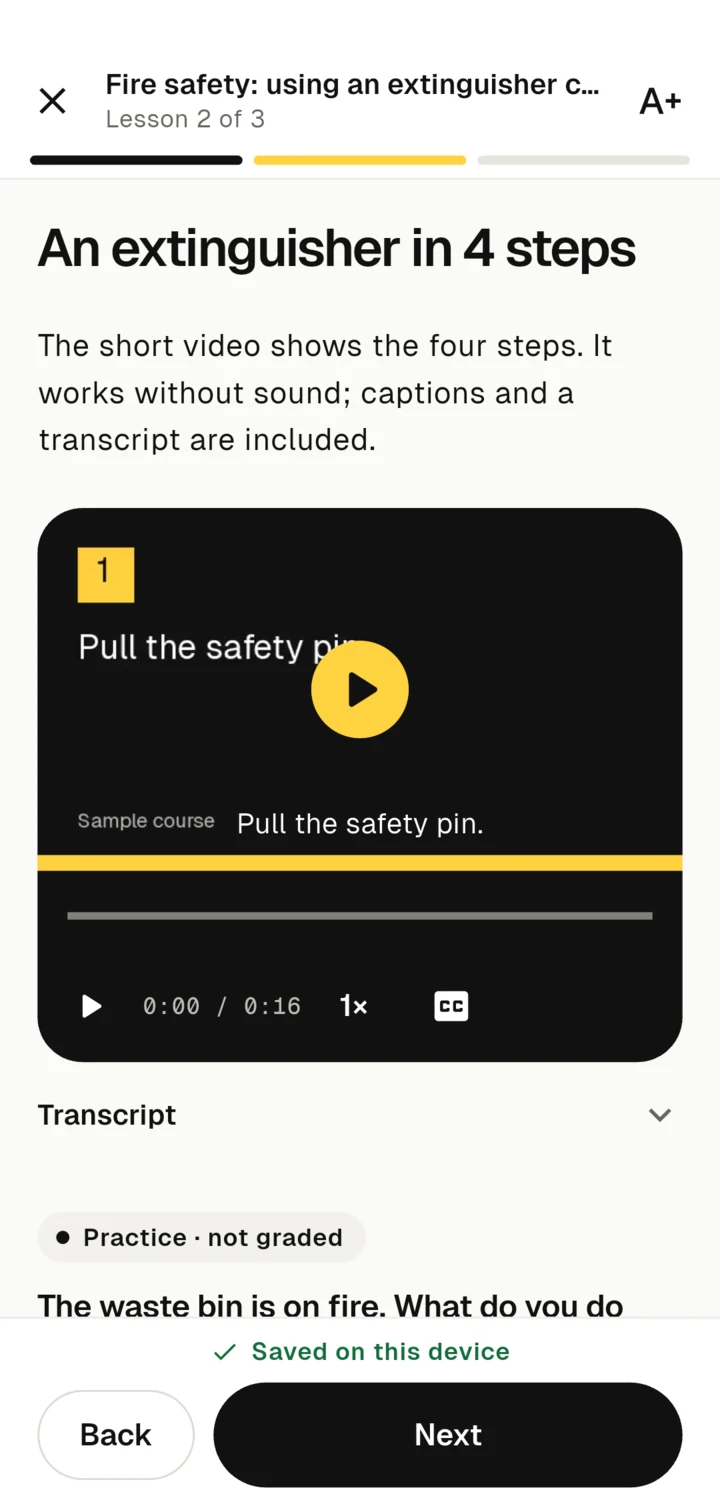
Your progress is saved on the device. You can stop at any time and carry on later, even without internet.
Practice questions
Practice questions are marked with Practice · not graded. Choose an answer and tap Check answer. Zudoria shows straight away whether it is correct and explains why.
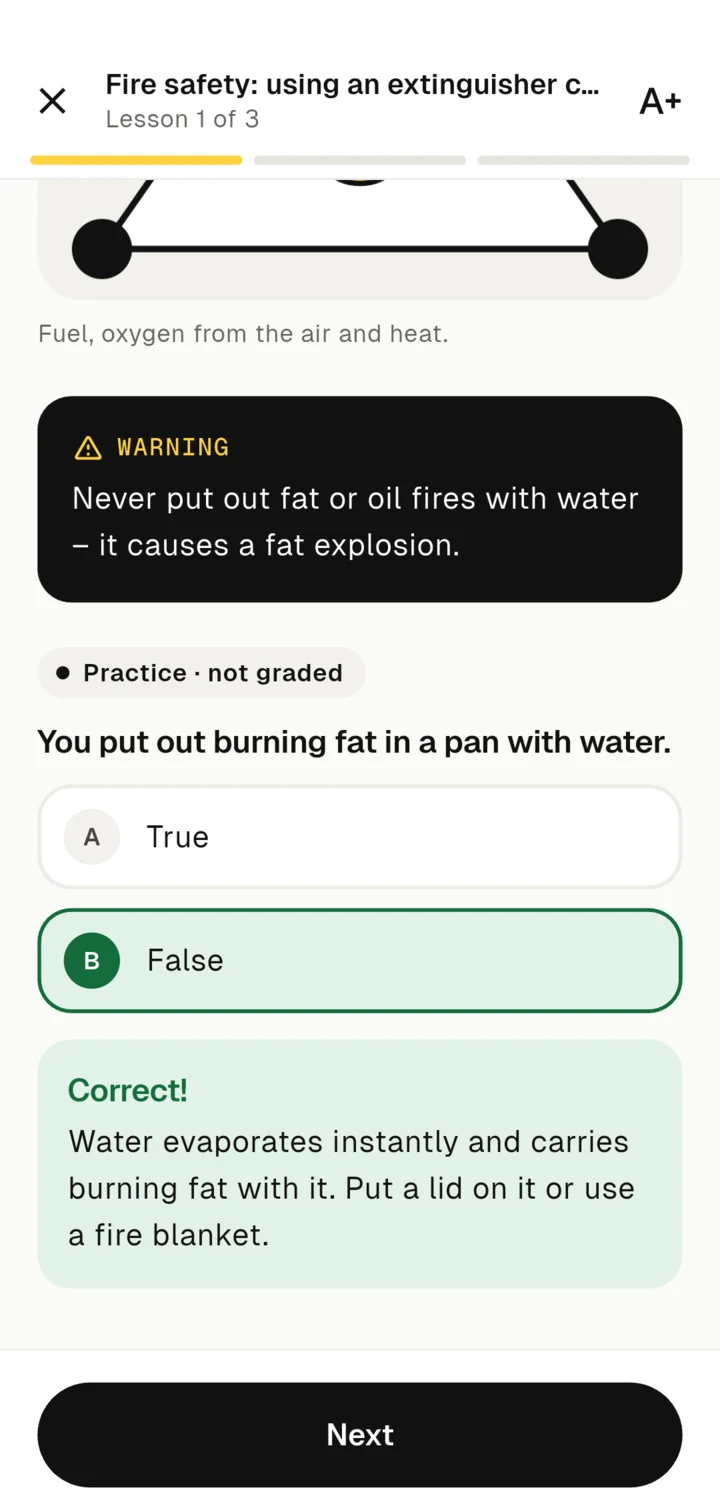
Under Practice you repeat the exercises of a course you have worked through. Practising does not change your completion.
Finish and confirm
In the last lesson, tap Finish. If the course asks for a confirmation, read the statement under Please confirm, tick it and tap Confirm.
Participation confirmation as a PDF
If the course offers a participation confirmation, you create it at the end:
- Tap Create participation confirmation.
- Enter your name under Your name. Under Further details (optional) you can add, for example, your company or customer number.
- Tap Create PDF.
- Pass on the PDF:
- Share PDF sends it by e-mail, messenger or to another app.
- Save PDF stores it as a file.
- If the provider has given an e-mail address, Zudoria prepares an e-mail to that address. Attach the saved PDF yourself and send the e-mail.
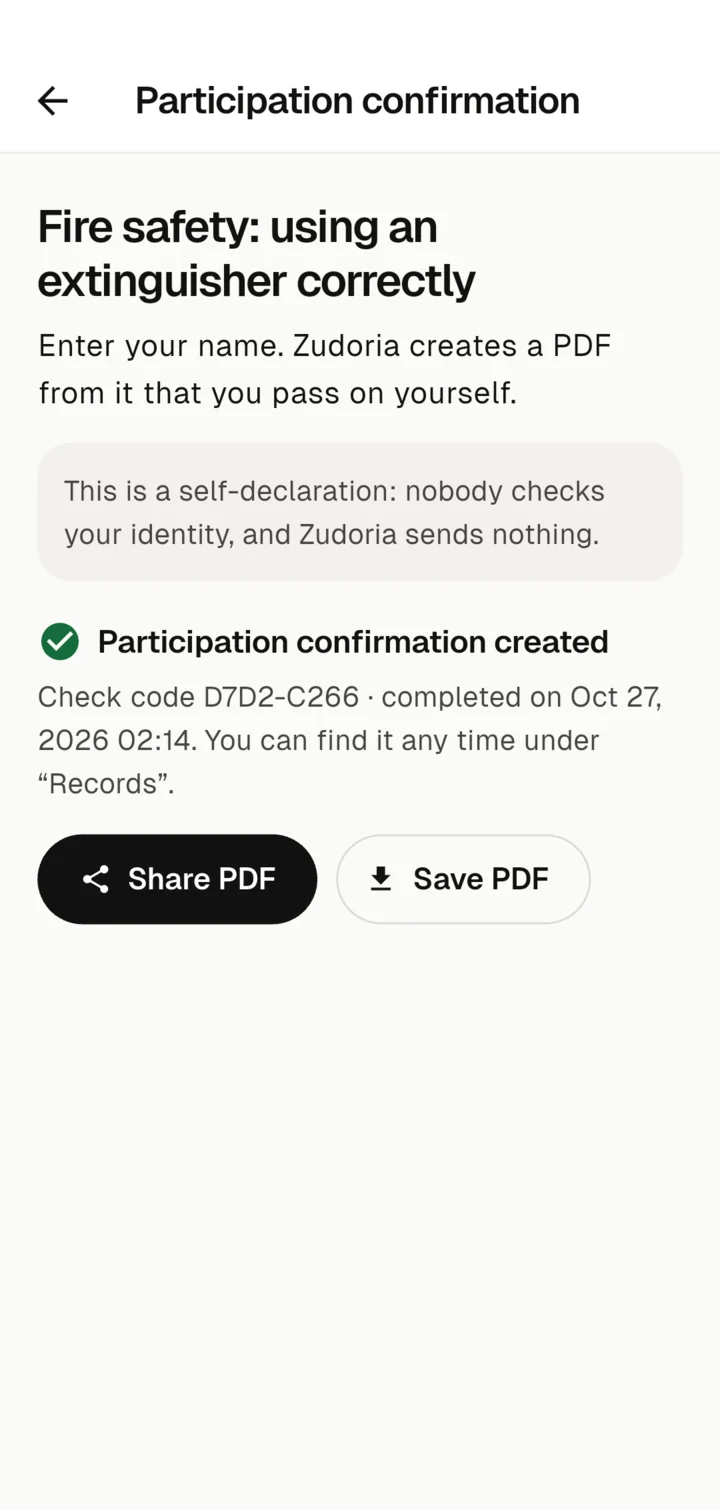
You can find all participation confirmations later under Records.
What the participation confirmation is
The PDF names the course, the version, your name, the date, the lessons you worked through, a confirmation and a check code. A QR code contains the signed details. This makes it possible to tell whether the PDF was changed after it was created.
The sample course
Zudoria comes with a sample course where you can try everything out. It has no final test, and no record is issued.