
Help · 02
Creating a course
Set up a course, build lessons from blocks, add practice questions, check everything in the preview and publish a fixed version.
Create a new course
- Switch to the Create area and tap New course.
- Choose how you want to start:
- Operate a device or machine creates three lessons with placeholders: overview, working safely, step by step, with a practice question and a participation confirmation. You replace the placeholders with your own content.
- Empty course starts with one empty lesson.
- Tap Create course.
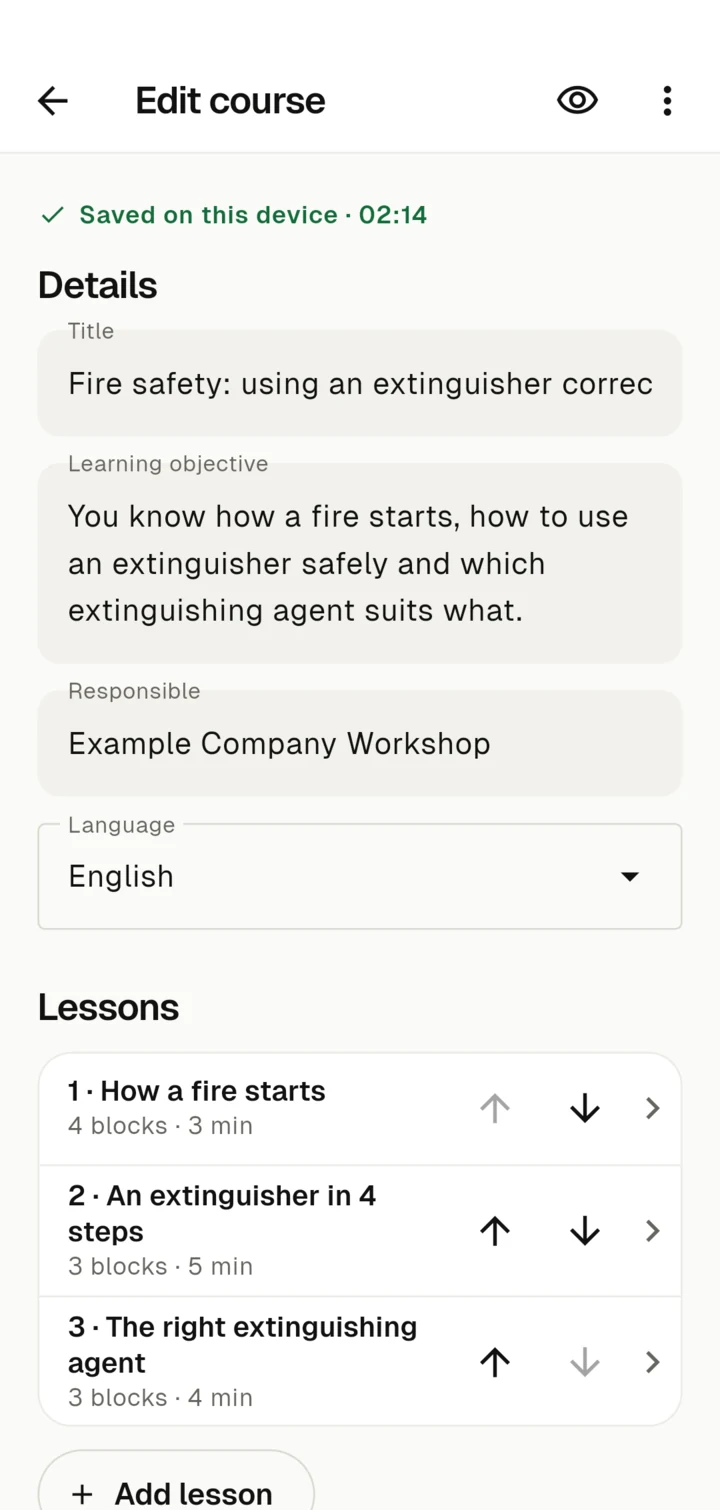
Zudoria saves every change on the device straight away. At the top you see, for example, "Saved on this device · 14:32". There is no save button.
Course details
Under Details you enter:
- Title, for example "Using the X200 coffee machine correctly".
- Learning objective: what participants can do after the course.
- Responsible: the person or department that maintains the content.
All three details are needed before you can publish the course.
Lessons and blocks
A course consists of lessons. Add lesson creates a new one, and Move up and Move down change the order. Tap a lesson to edit it.
You build a lesson from blocks. Tap Add block and choose:
- Text: an explanation with an optional heading. An empty line starts a new paragraph.
- Image: take or choose a photo. Under "What does the image show?" describe what can be seen. The text is read aloud when someone cannot see the image. An image without important information can be marked as decorative.
- Video: record or choose a video, with a title and transcript. You can also add captions in WebVTT format. You edit videos directly in the app, see Editing videos.
- Audio: an audio file (MP3, M4A, AAC or WAV) with a title and transcript.
- File: a PDF, for example operating instructions.
- Notice: a highlighted note or a warning.
- Practice question: a question with an explanation, see below.
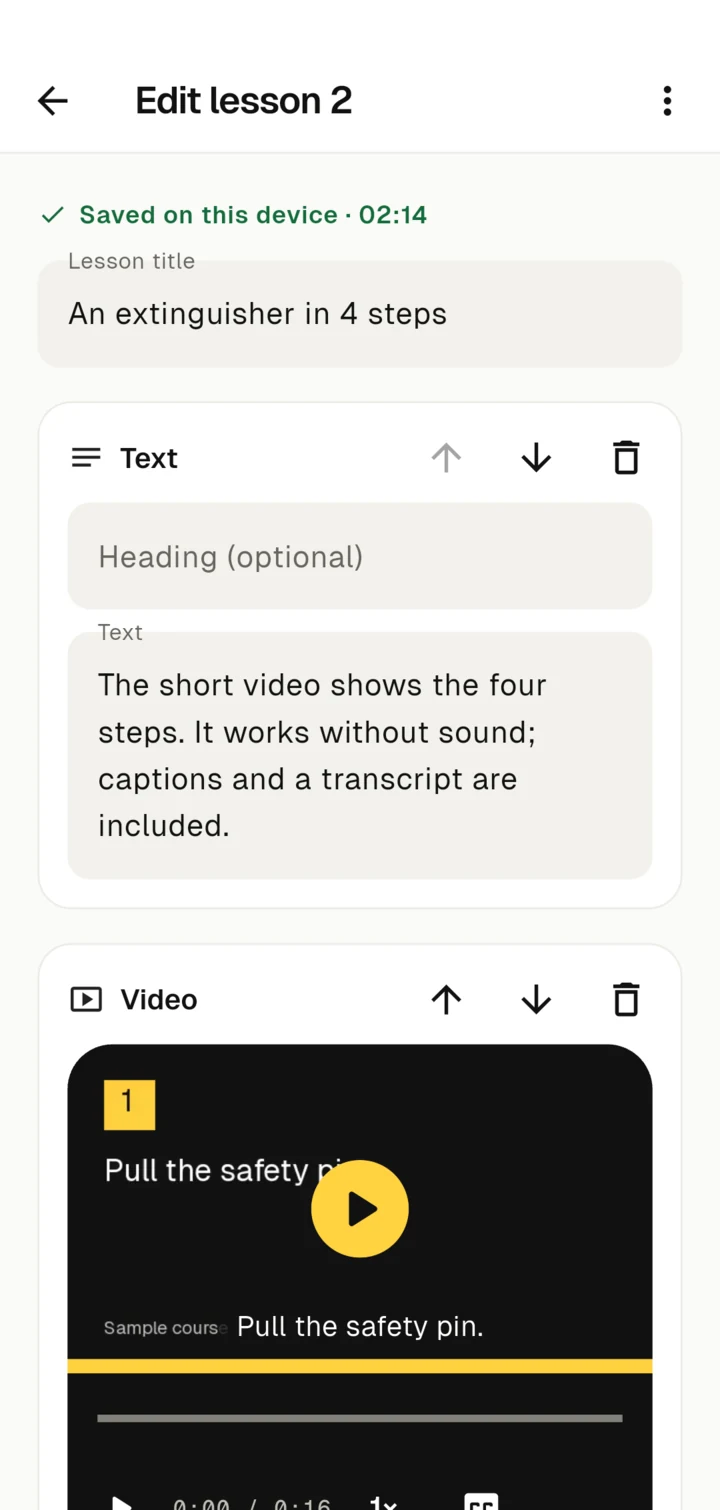
If you delete a block, you can bring it back right away with Undo.
Limits for media
- Images up to 20 MB, videos up to 150 MB, audio up to 100 MB, PDFs up to 50 MB.
- A whole course can be up to 300 MB.
If a video is too large, shorten it in the video editor or record it at a lower quality.
Practice questions
Practice questions help to reinforce the most important points. They are not graded. There are three types:
- One correct: exactly one answer is correct.
- Several correct: participants tick all correct answers.
- True / false: a statement that is either true or not.
Add an Explanation. It appears after Check answer and says why the answer is correct. A good question describes a typical situation at the device, not a definition.
Completion and record
Under Completion and record you decide how a course ends:
- Ask for an explicit confirmation: At the end, the person ticks a statement, for example that they have understood the safety instructions. You can word the statement yourself.
- Offer a participation PDF: At the end, participants create a PDF and send it to you themselves. Enter who the PDF is for and which e-mail address it goes to.
The participation confirmation is a self-declaration. Nobody checks the person's identity, and Zudoria does not send anything itself. You can read more under Learning and records.
Check in the preview
In Edit course, tap Preview at the top. You see the course the way participants see it and can try it out. Under View you switch between Phone, Tablet and Desktop. Nothing is saved in the preview and no participation confirmation is created. Tap End preview to go back.
Publish
Publishing creates a fixed version that you can pass on. Afterwards you keep working on the draft without changing the published version.
- In Edit course, tap the button under Publish: the first time it says Publish, later for example Publish version 2.
- Zudoria checks the course:
- Needs to be completed lists what is missing, for example a learning objective, an image description or a transcript for a video. Open lesson takes you straight to the right place.
- Hints are recommendations and don't block publishing, for example very long paragraphs.
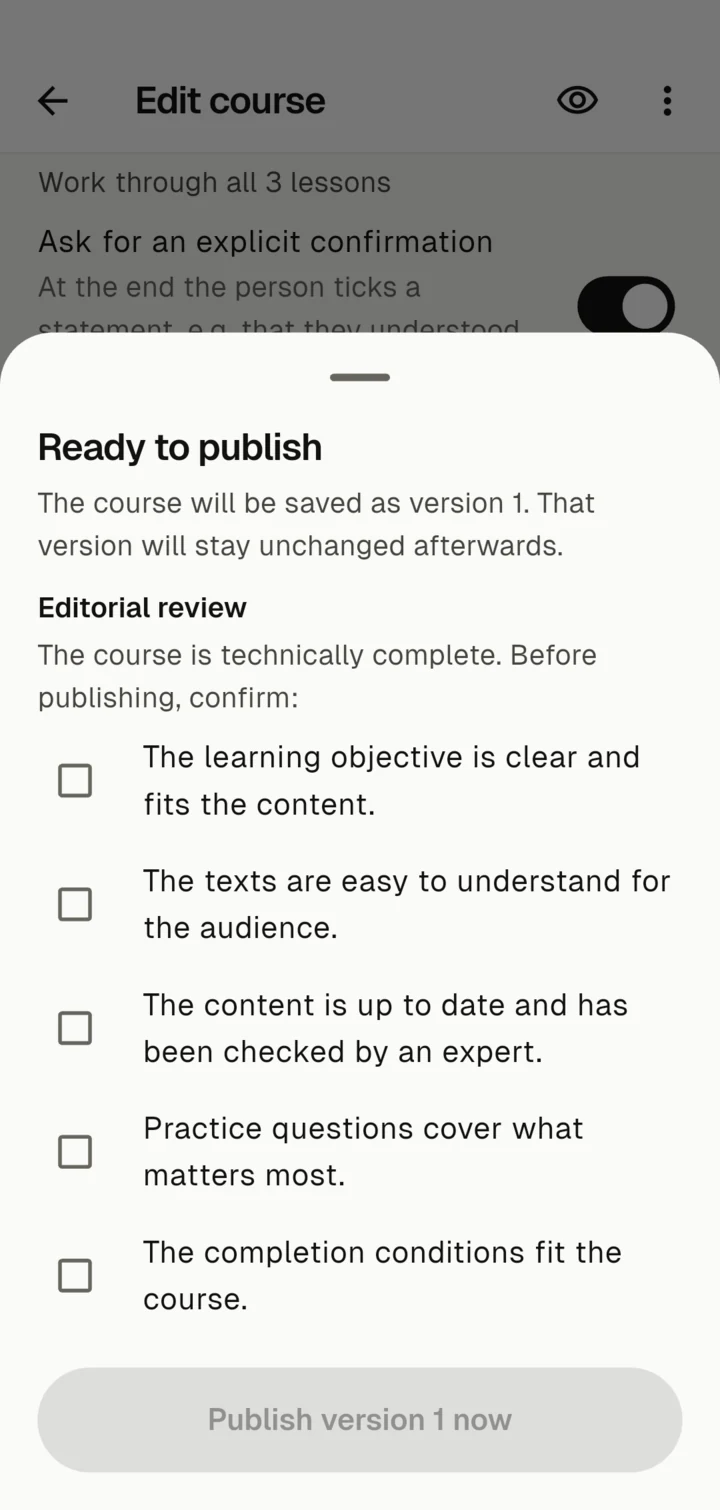
- When everything is complete, you confirm the Editorial review: learning objective, clarity, up-to-date content, exercises and completion conditions.
- Tap Publish version 1 now.
The course status shows where you stand: Draft · not published yet, "Published · version 1" or "Version 1 published · changes not yet published".
Delete a course
With More actions → Delete course you remove the draft and all versions from this device. Course files you have already passed on stay with their recipients.