
Help · 06
Backup and devices
Back up courses, drafts, learning progress and records to a file, restore them on a new device and take the full version with you.
Where your data is kept
Zudoria stores everything on your device: your own courses and drafts, opened courses, learning progress and participation confirmations. None of it is kept on a schukai server. Zudoria contains no ads and no usage analytics.
This also means: if you uninstall the app or lose the device, everything you have not backed up is gone. So create a backup regularly.
Create a backup
- Tap Backup at the top right.
- Tap Save backup and choose a location, for example your own cloud drive. Or tap Share backup to hand the file to another app.
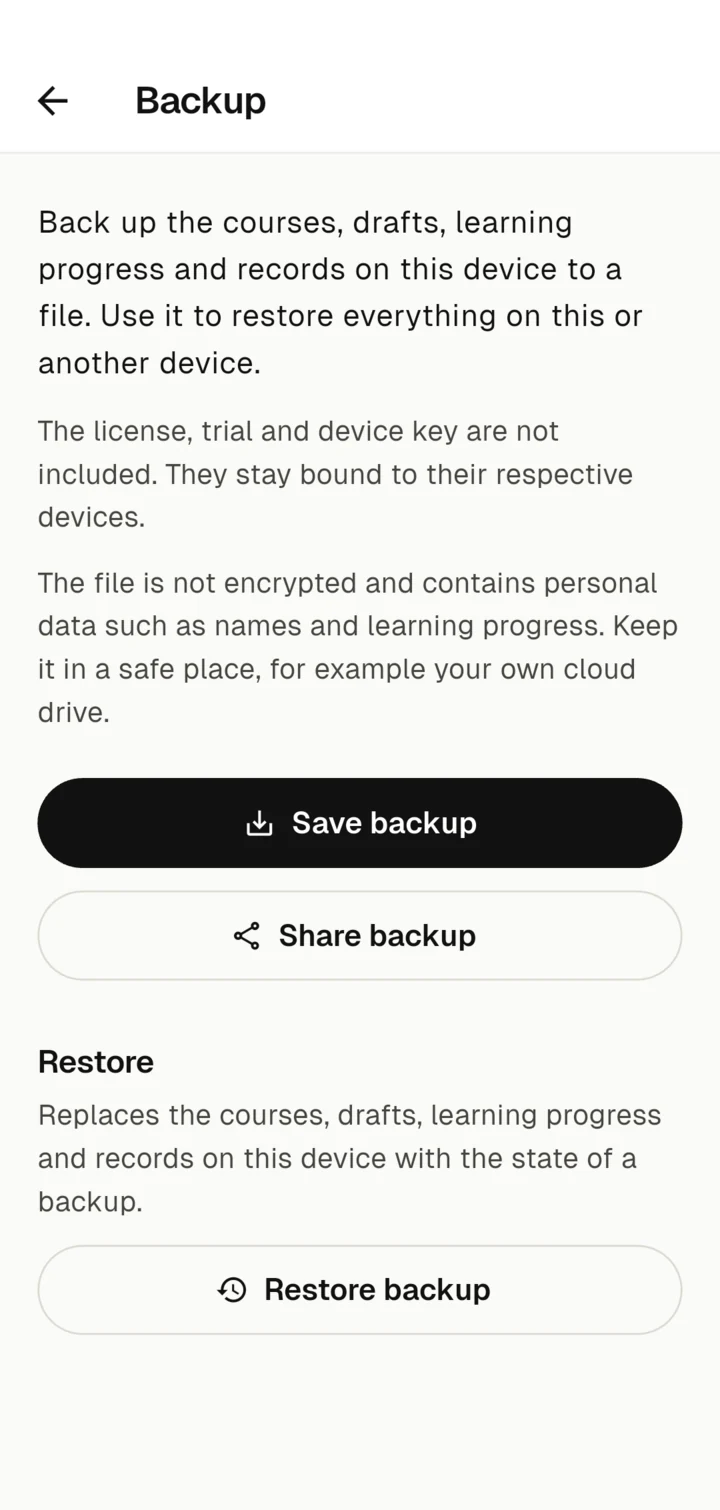
The backup contains the courses, drafts, learning progress and records of this device. The licence, trial and device key are not included. They stay bound to their respective devices.
Restore a backup
- Tap Backup and then Restore backup.
- Choose the backup file.
- Zudoria shows when the backup was made and how many courses, drafts and records it contains. Tap Replace.
Restoring replaces the current state on this device. Anything added after the backup is lost. The licence and trial stay unchanged. If the file is damaged, Zudoria changes nothing.
Move to a new device
- Create a backup on the old device and save it where the new device can reach it, for example in Google Drive.
- Install Zudoria on the new device from Google Play.
- Restore the backup there.
- If you bought the full version, tap Activate Zudoria and then Restore Google Play purchase. Use the same Google Play account as for the purchase. The device needs an internet connection for this.
Backup or course file?
- A course file contains exactly one published course. It is meant for others who are to learn the course.
- A backup contains everything from your device, including drafts, progress and records. It is only for you.
If you only want to keep editing one course on another device of your own, the course file is enough: use it there with Use course file as draft, see Sharing courses.