
Help · 03
Editing videos
Edit training videos directly in Zudoria – with intro and outro, text overlays, arrows and shapes, voice-over and your own audio track.
Open the video editor
You don't need editing software for a training video. Typical cases are a slip of the tongue, several recordings in a row, an intro and a voice-over.
- Open the lesson with the video block.
- Tap Edit video.
- Zudoria creates an editing project. The original video stays unchanged until you tap Apply.
Every change in the editor is saved straight away. You can leave the editor and carry on later. Undo at the top reverses the last step.
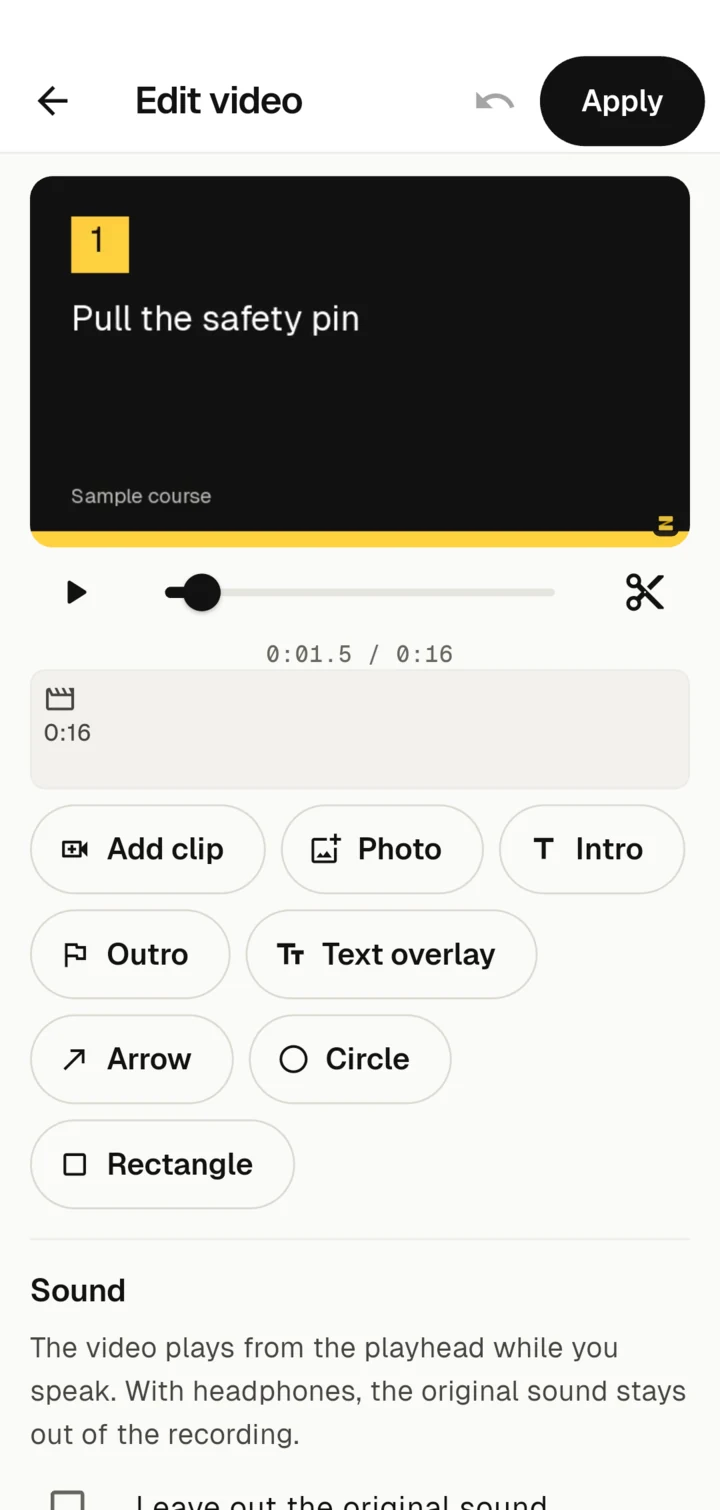
Preview and timeline
At the top you see the preview. Play plays the whole edit. Drag the slider below it to set the playhead.
The timeline shows the parts of your video one after the other: clips, photos, intro and outro. The longer a part, the wider it is. Tap a part to select it. Its settings then appear below. Clear selection takes you back to the settings for the whole video.
Cutting
Trim the start and end
Select a clip. Under Section: 0:01 to 0:12 drag the two handles to cut away the run-up at the start and the reach for the stop button at the end.
Cut out a slip of the tongue
- Set the playhead to the start of the slip.
- Tap Split at the playhead (the scissors icon).
- Set the playhead to the end of the slip and split again.
- Select the piece in between and tap Remove.
Several recordings and photos
- Add clip: make another recording or choose one from the gallery. It is placed after the selected part.
- Photo: a photo as a still image, for example a close-up or a sign. You set its duration between 1 and 15 seconds.
- Earlier and Later move the selected part.
Speed and sound of a clip
Under Speed you play a clip faster, at 1.5× or 2×. This shortens waiting times, for example while drilling or filling. Mute this clip turns off the sound of a single clip.
Intro and outro
- Intro adds a title card before the video. Zudoria uses the title of the video or, if it has none, the title of the course.
- Outro adds a card at the end, for example with "Well done!".
You can change the title and subtitle; the duration is between 2 and 8 seconds. The cards appear in the Zudoria style: black background with a yellow bar.
Company logo
When nothing is selected, you find the Logo section at the bottom. Tap Choose logo and choose a PNG, JPEG or WebP file. A PNG with a transparent background works best. The logo appears at the top at the start of the intro and outro, on a light area. That way a dark logo stays easy to see on the black background. Remove logo takes it out again.
Text overlays
Text overlay shows a text at the playhead, for example "Step 2: pull out the safety pin". This helps when someone watches without sound.
- Starts here and Ends here set when the text is visible. Set the playhead first.
- Top or Bottom sets its position in the picture.
Arrows, circles and rectangles
In training videos it often matters most to show exactly where to look. With Arrow, Circle and Rectangle you mark a detail in the picture.
- Set the playhead to where the marking should appear.
- Tap Arrow, Circle or Rectangle. The shape appears in the middle of the picture and is visible for 4 seconds.
- Drag the shape to the right place in the preview. For an arrow, drag its handles to move the start or the tip; for circles and rectangles, drag the corners to change the size.
- Use Starts here and Ends here to set how long the shape is visible.
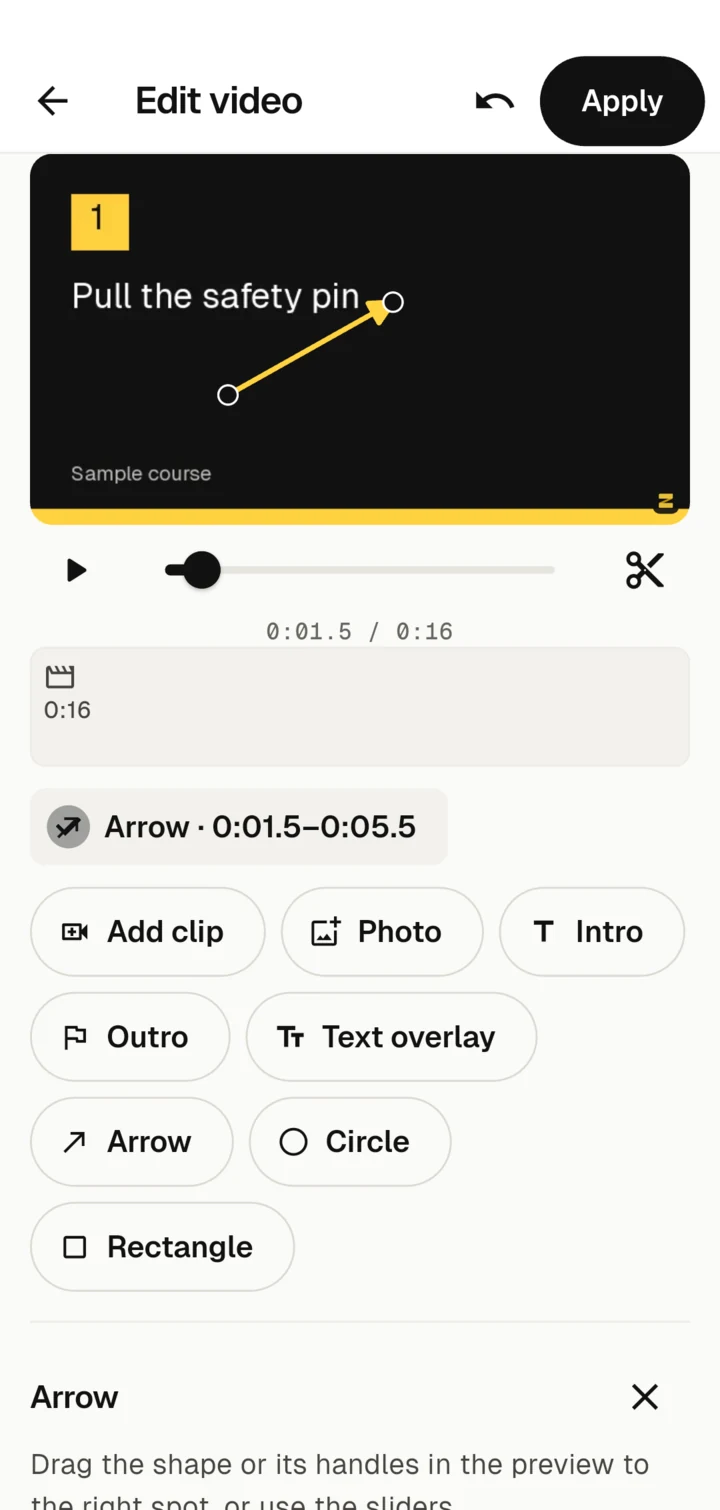
Under Colour you choose yellow, white, black or red. Every shape has a dark outline so it stays visible on light and dark pictures.
If dragging with your finger is not precise enough, use the sliders in the section below: Arrow start and Arrow head for arrows, Position, Width and Height for circles and rectangles. The sliders also work with a screen reader.
Voice-over and audio tracks
When nothing is selected, you find the sound settings in the Sound section.
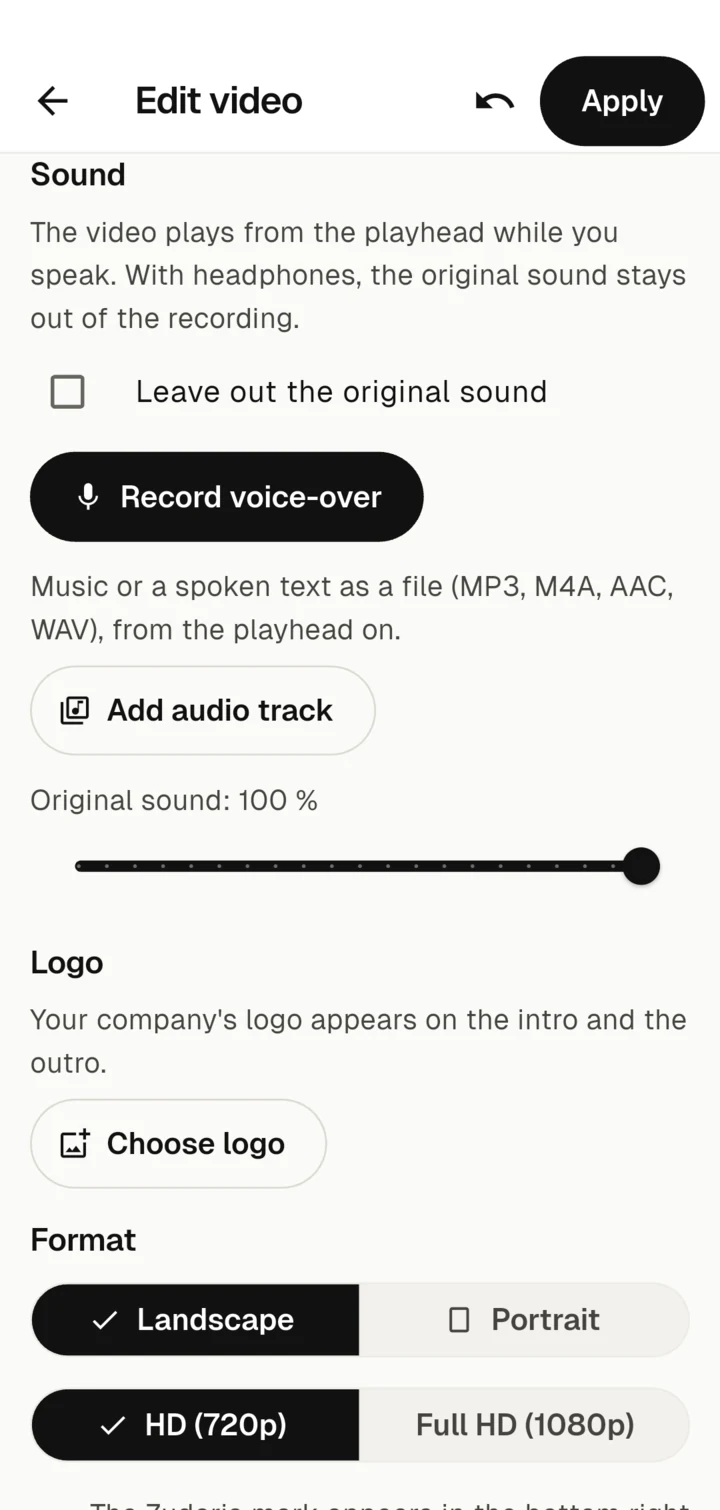
Record a voice-over
- Set the playhead to where you want to start.
- Tap Record voice-over. The first time, Android asks for access to the microphone.
- The video plays while you speak. A bar shows the volume.
- Tap Stop recording. The recording stops by itself at the end of the video at the latest.
A new recording replaces the previous one. With headphones, the original sound stays out of the recording.
Leave out the original sound
Tick Leave out the original sound if only your voice-over and your audio track should be heard in the finished video. This helps with machine noise or conversations in the background. Without the tick, you set how loud the clips' sound should be under "Original sound".
Add your own audio track
Add audio track lets you choose an audio file (MP3, M4A, AAC or WAV), for example music or a ready-made spoken text. The audio track starts at the playhead.
Tap the audio track in the timeline to select it. Starts here moves its start to the playhead, and the slider sets its volume. An audio track ends with the video at the latest. Remove audio track takes it out.
Format and Zudoria mark
Under Format you choose Landscape or Portrait and the resolution HD (720p) or Full HD (1080p). HD is enough for most training videos and results in smaller course files.
Every video that Zudoria creates carries a small Zudoria mark at the bottom right. It is shown for the whole length of the video. The preview already shows it.
Apply
Tap Apply at the top. Zudoria creates an MP4 video from your edit and puts it into the video block. A progress bar shows how far it has got. Meanwhile you can switch to another app; the video keeps being created. Cancel stops the process.
Your editing project is kept. If you open Edit video again later, you carry on where you left off.